1st Round: 960 * 3 (Watch Videos, Take Notes, Conduct Experiments) = 2880 minutes, roughly 48 hours, and 96 tomatoes.
If I need to get it done in 3 Weeks, need to finish AT LEAST: 5 tomatoes per day, namely 2.5 hours.
On weekends, minimum tomatoes are doubled, namely 5 hours.
Deadline for 1st & 2nd Round are respectively : 2nd & 12th April 2024
2nd Round: Notes Scanning and Exam Question Training. This will complete 3 tomatoes(1.5 hours) per day for ten days.
| Date | Covered (Out of total 960 minutes) | Target (minutes elapsed) | Notes taken? | On Track? |
|---|---|---|---|---|
| 12th/Mar/2024 | 71 | 100 | Yes, Till Epic 19 | No |
| 13th/Mar/2024 | 90 | 200 | Yes, Till Epic 25 | No |
| 14th/Mar/2024 | 300 | |||
| 15th/Mar/2024 | ||||
| 16th/Mar/2024 | 188 | |||
| 17th/Mar/2024 | ||||
| 18th/Mar/2024 | ||||
| 19th/Mar/2024 |
This documentation page is adapted from the Udemy Course of the same name.
For the exam wiki page, you can see the official documentation here
Course-Introduction
- This course is for getting certified by AWS official as a Cloud Practitioner. AWS Certified Cloud Practitioner is the homepage of this certification, from where you can direct to prepare for the exam or schedule an exam
- It’s a challenging certification, so this course will be long and interesting.
- Basic IT knowledge is helpful, but not a MUST. Everything will be taken good care of.
- 40 out of 200+ AWS services will be covered.
- Take your time. Practice more. And it’s NOT a race !
Below is a Sample Question taken from the exam 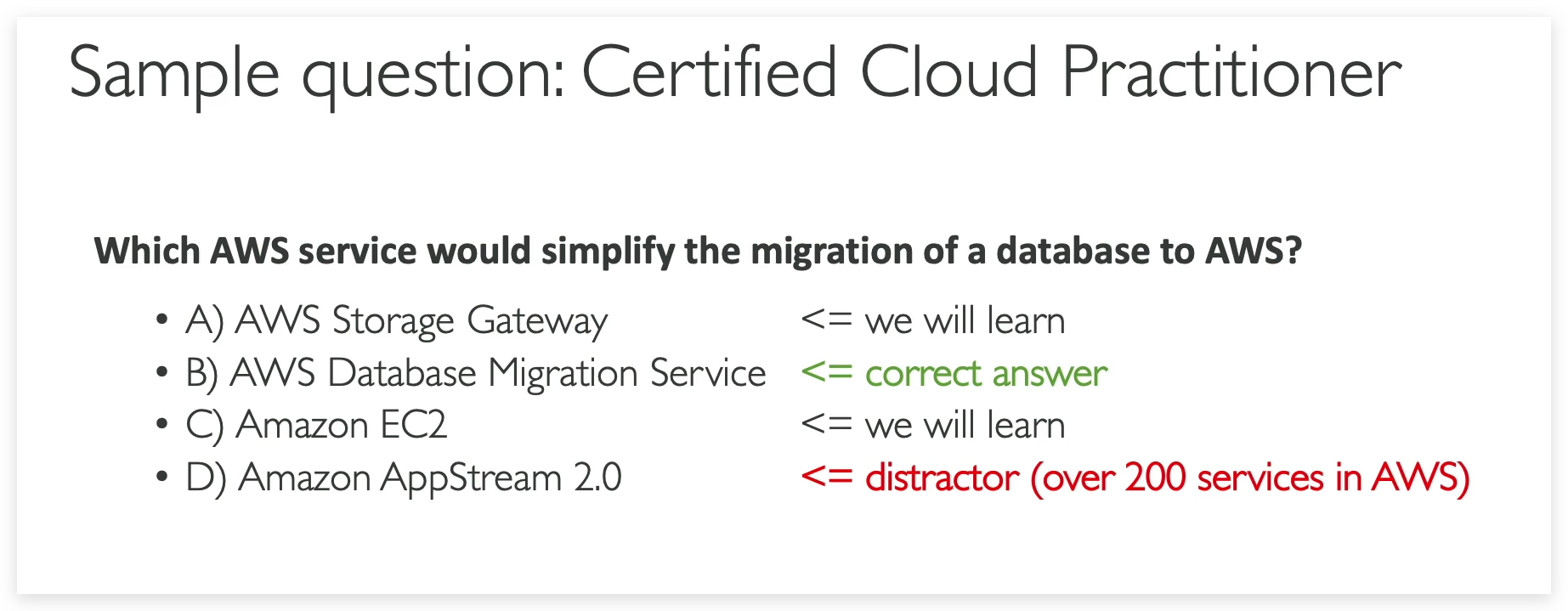
For more Exam Prep Official Question Set, you can check here
Additionally, this course is the first certificate you will have along the whole journey of AWS Certification. PFB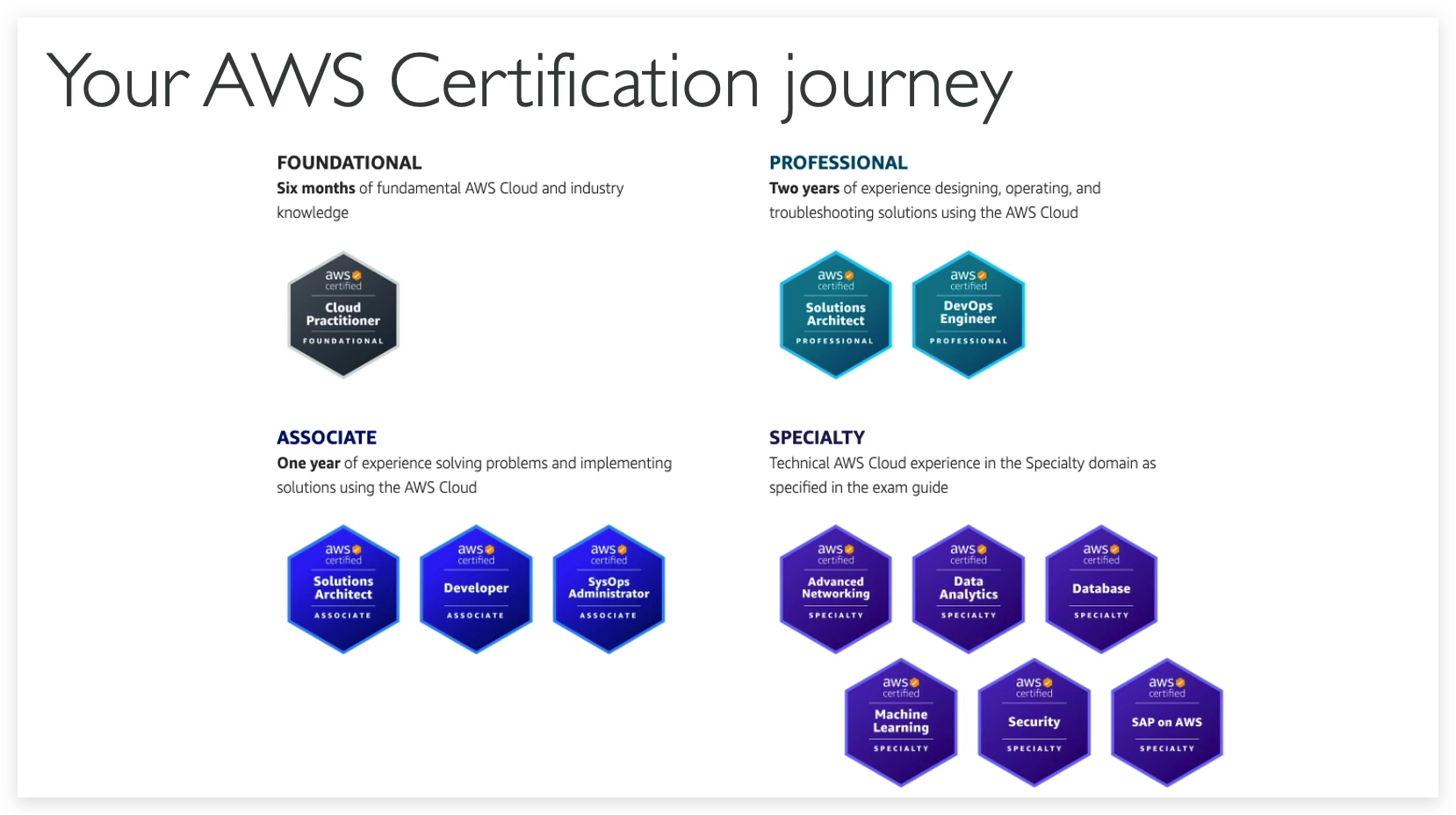
Creating-an-AWS-Account
Since we are taking the courses and as mentioned in the course, most of the hands-on will be free. So we created an AWS root account and selected the free support plan. Response below is a signal of account being created successfully.
How to create an AWS account:
- Direct to aws console portal
- Input the AWS ROOT email, account name & password and confirm the password
- Select the purpose as Personal and enter your basic information.
- Specify your credit card details
- Verify your identity by providing a telephone number for receiving the verification voice call or text code.
- Choose the plan as : “Basic Support - Free”
- Click the “complete signup” button it will prompt below congratulation page.
Till now, you are all set for aws account creation.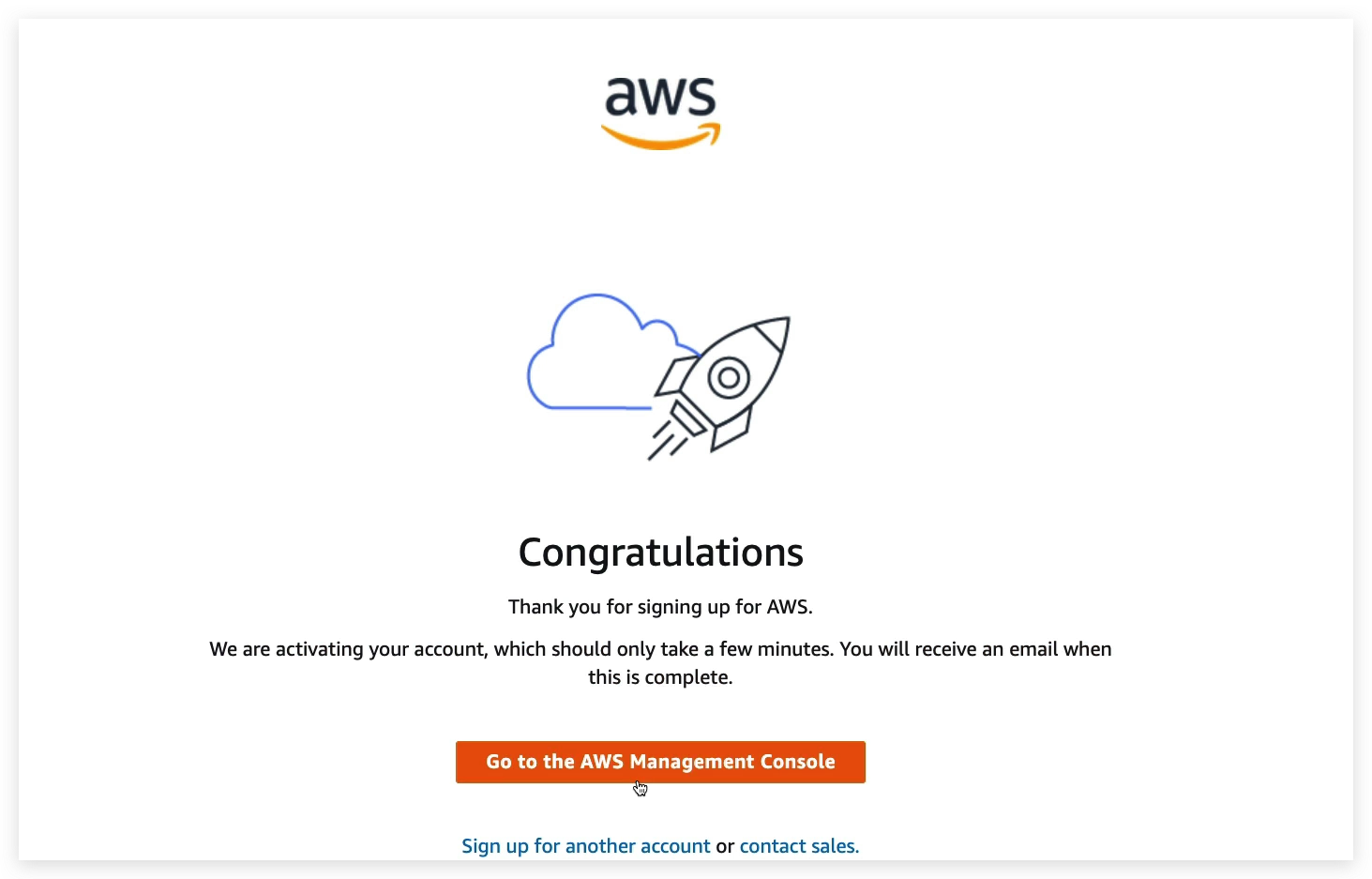
AWS-Account-Activation-Troubleshooting
Ensuring your AWS Account is activated (please read)
Before proceeding with the course, you need to make sure your account is activated
The activation email looks like this (the content might be slightly different for you):
Note: The text might be slightly different for you, but as long as AWS says thank you, or welcome, and tells you to start using your account, it should mean it’s activated.
Example: A student received “Thank you for creating an Amazon Web Services (AWS) account. For the next 12 months, you will have free access to compute, storage, database, and application services. Learn more by visiting our Free Tier page. To access your account, click Access Account”
To have your account activated, make sure to:
- Add a Payment Method
- Verify your phone number
- Choose an AWS Support Plan (Free)
If your account is not activated yet, you will see this kind of error messages in the next lecture:
Just in case you can’t access your account or activate it after troubleshooting, you can just reach out to AWS Support for help.